Jetson Now Works with Intercom
 Jetson
Jetson automatically finds bugs and feature requests hiding in your support inbox.
Try it freeWhen we launched Jetson, Help Scout was the only supported input source. That was fine for early customers, but we kept hearing the same question: “We use Intercom — when can we connect?”
Today, Intercom is live as Jetson’s second fully supported integration. If your team runs customer support through Intercom, you can connect your workspace and start getting classified bug reports and feature requests within minutes.
The Problem We’re Solving
Support teams on Intercom deal with the same challenge as everyone else: bug reports and feature requests get mixed in with general support conversations. They get resolved, closed, and forgotten. The product team never sees them.
Intercom has tags and attributes, but someone has to manually apply them. And even when they do, there’s no grouping, no deduplication, no way to see “this same bug was reported 14 times this month by 14 different customers.”
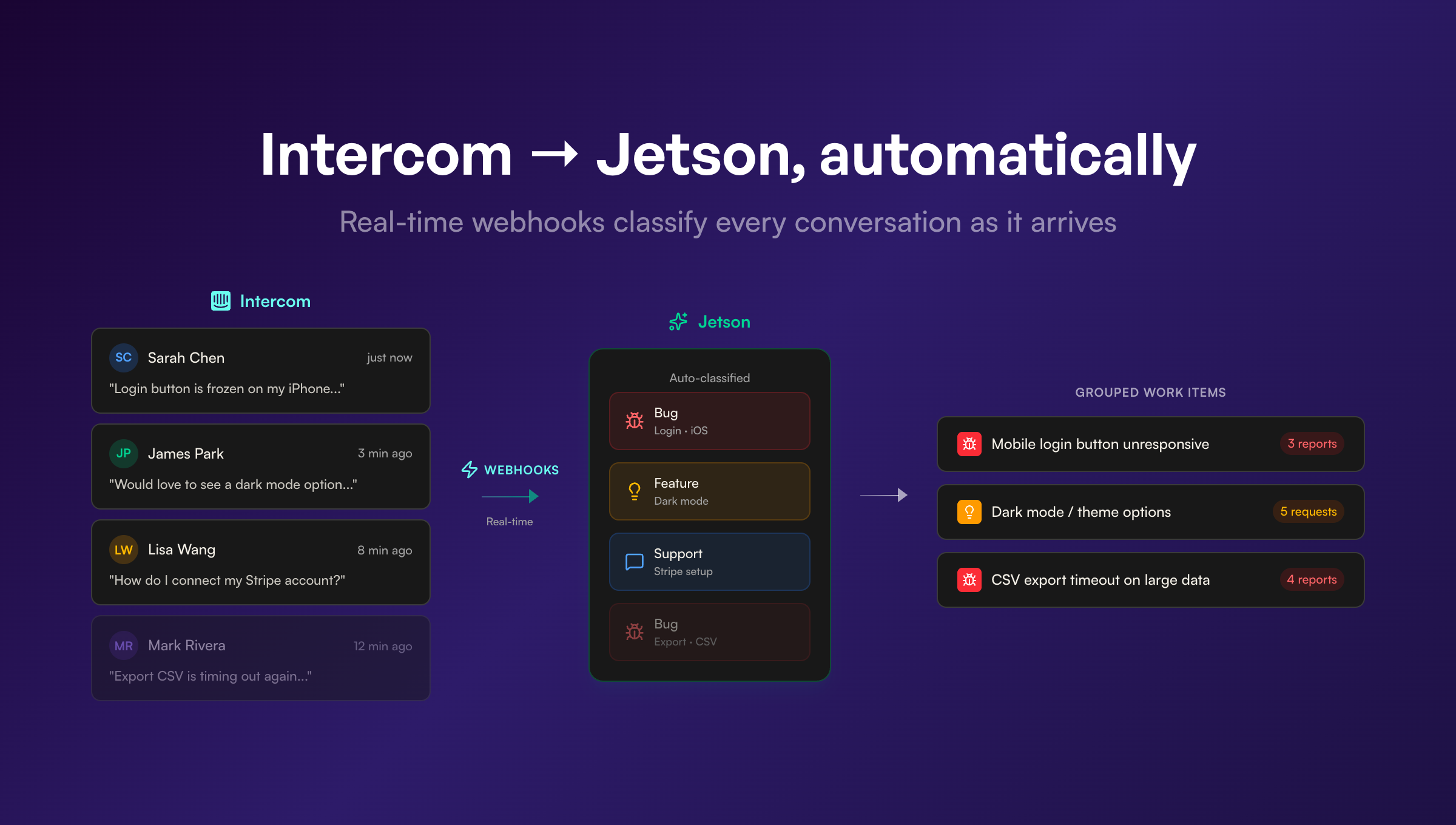
Jetson fixes that. Every conversation that comes through Intercom gets classified automatically. Bugs get grouped with similar bugs. Feature requests get grouped with similar requests. You see the full picture without anyone on your team having to tag anything.
How Setup Works
Connecting Intercom takes about 30 seconds:
- Authorize via OAuth — Click “Connect Intercom” from the onboarding flow, the Add Product page, or Settings. You’ll be redirected to Intercom to authorize read-only access.
- Workspace linked automatically — Jetson creates a product tied to your Intercom workspace. No configuration needed.
- Conversations start flowing — New conversations and replies come in via webhooks, usually within a few minutes of being created in Intercom.
That’s it. There’s no webhook URL to copy, no API key to paste, no configuration file to edit. OAuth handles everything.
Real-Time Webhooks
Once connected, Jetson receives webhooks for three event types:
- New conversations created by customers
- Customer replies to existing conversations
- Agent replies (so Jetson has full context when classifying)
Each incoming message gets deduplicated at the message level — if the same conversation part comes in twice, it’s ignored. New conversations are queued for classification, and you’ll see them appear as bug reports or feature requests (or filtered out as noise) shortly after they’re created in Intercom.
This means your Jetson dashboard stays current without anyone having to run imports or sync data manually.
Historical Imports
Already have months or years of conversations in Intercom? You can import them by date range. Jetson processes historical conversations in batches, so you’ll see results building up as each batch is analyzed.
This is especially useful when you first connect — run an import of the last 30 or 90 days to get an immediate view of what your customers have been reporting. From there, webhooks keep everything up to date going forward.
Help Center Integration
Jetson also imports your Intercom Help Center articles. This isn’t just for display — it gives the classifier better context.
When a customer asks “how do I reset my password?” and you have a Help Center article covering that exact topic, Jetson can recognize it as a documentation question rather than a bug report. Without that context, the classifier might misinterpret it as a missing feature or a broken flow.
Help Center articles are stored with embeddings so Jetson can do semantic matching, not just keyword matching. This makes classification more accurate, especially for edge cases where the customer’s language doesn’t exactly match the article title.
Running Multiple Products
If you’re already using Jetson with Help Scout, adding Intercom doesn’t replace your existing setup. Each integration creates a separate product with its own bugs, feature requests, thresholds, and settings.
This works well for teams that use different tools for different channels — maybe Help Scout for email support and Intercom for in-app chat. Each product gives you a focused view of what’s happening in that channel, and the overview dashboard shows trends across all of them.
To add a second product, go to Add Product and connect Intercom. The guided setup flow walks you through picking your workspace, naming the product, and starting the initial import.
What Comes Next
Intercom is our second integration, and we’re building the third now. Zendesk support is in active development. The goal is to support every major help desk platform so Jetson works regardless of what your team uses.
If you’re on a platform we don’t support yet, let us know. We prioritize based on what customers actually need.
Getting Started
If you’re already a Jetson customer, head to Add Product or Settings to connect Intercom.
If you’re new, you can start onboarding and select Intercom during setup. Or try the free audit tool first — it works with Intercom too, no account required.