Hear Your Customers: Inline Quotes in Bug Reports
 Jetson
Jetson automatically finds bugs and feature requests hiding in your support inbox.
Try it freeJetson has always shown you how many customers reported a bug or requested a feature. You’d see “12 customer reports” with links to the original conversations. But to understand what those customers actually said, you had to click through to each one.
That extra step matters more than you’d think. When a PM is triaging 20 bug reports, they’re not clicking through to read every linked conversation. They’re scanning titles, looking at counts, and making prioritization decisions based on summaries. The customer’s actual words — the specific frustration, the exact error message, the context of what they were doing — gets lost.
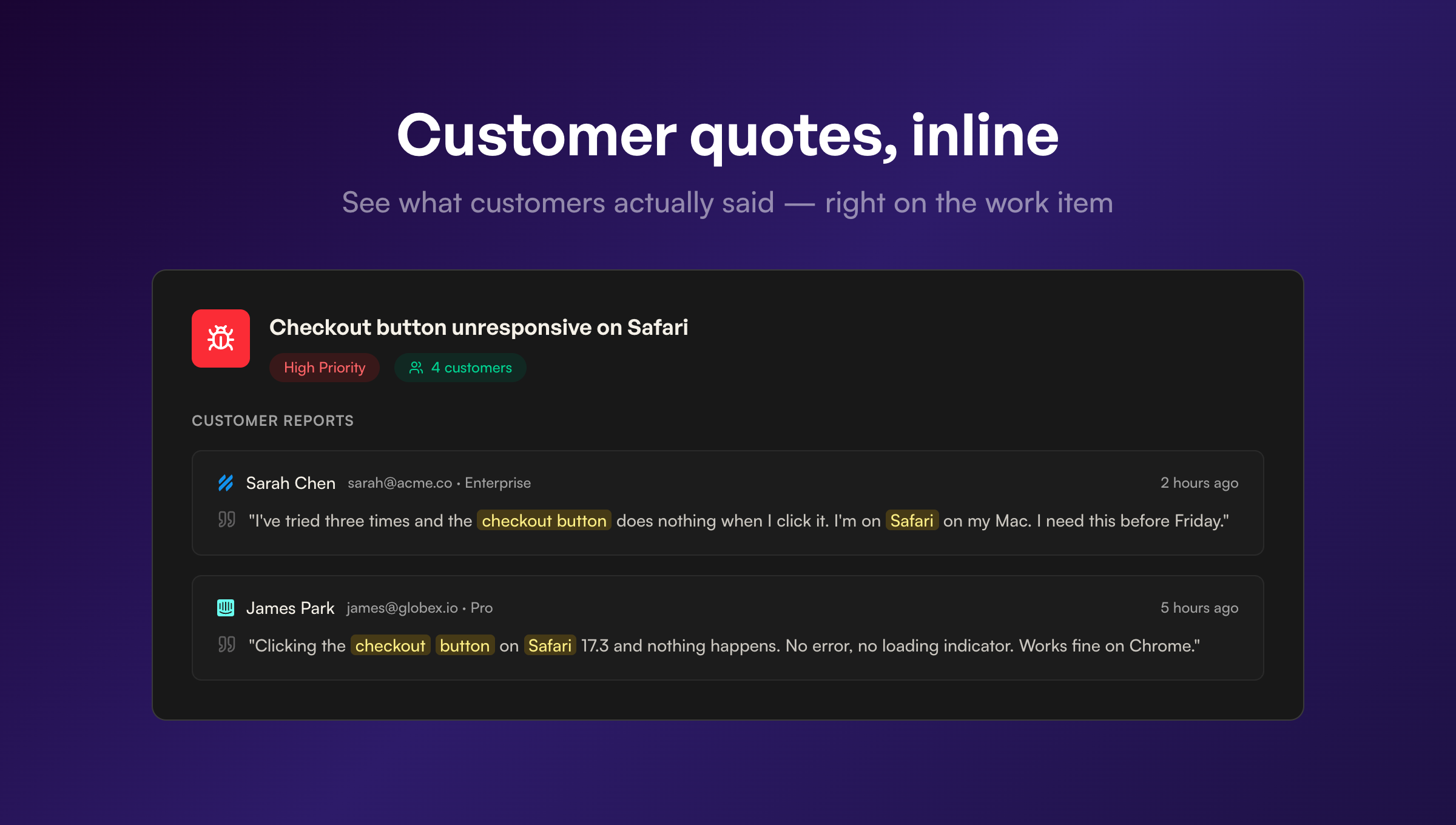
We fixed that. Every customer report now shows the original message inline, right on the work item page.
What It Looks Like
Open any bug report or feature request in Jetson, and each customer report card now shows:
- The customer’s actual message — the first message from the conversation, displayed as a quote
- The sender’s name and email — so you know who said it
- A provider icon — Help Scout, Intercom, or Slack, so you can tell which channel it came from
Instead of seeing a list of conversation links, you see a list of real customer voices telling you what happened.
Smart Excerpts, Not Dumb Truncation
Customer messages can be long. Someone might write three paragraphs about their workflow before mentioning the actual bug in paragraph three. If we just showed the first 160 characters, you’d get context about their workflow but miss the bug entirely.
So we built smart windowing. Here’s how it works:
1. AI-generated keywords. When Jetson classifies a conversation, it also generates 3-5 keywords that capture the core issue. For a bug titled “Checkout button doesn’t respond on Safari,” the keywords might be “checkout,” “button,” “Safari,” “respond.”
2. Window around the most relevant keyword. Instead of starting from the beginning of the message, the excerpt starts near the first important keyword. If the customer mentioned “checkout button” in paragraph three, the excerpt is windowed around that section.
3. Snap to word boundaries. The excerpt never cuts a word in half. It finds the nearest word boundary in both directions, so you always get readable text.
4. Ellipsis for context. If the excerpt starts mid-message, it shows ”…” at the beginning so you know there’s more above. Same at the end.
The result is that a 500-word customer message gets condensed to the most relevant ~160 characters, centered on the part that actually matters for this specific bug report or feature request.
Keyword Highlighting
The keywords aren’t just used for windowing — they’re also highlighted in the quote itself. Each keyword match gets a subtle yellow highlight, so when you’re scanning a list of 15 customer reports, your eye is drawn to the relevant terms in each one.
This makes a real difference when triaging. Instead of reading each quote carefully, you can scan the highlighted words across all reports and quickly see whether customers are describing the same thing or different variations of the issue.
The highlighting is case-insensitive and works with partial word matches, so “checkout” will highlight “checkouts” too.
Why the Customer’s Voice Matters
There’s a meaningful difference between reading a system-generated title and reading what a customer actually wrote.
System title: “Checkout button bug — 12 reports”
Customer quote: “I’ve tried three times to complete my order and the checkout button does absolutely nothing when I click it. I’m on Safari on my Mac. This is really frustrating because I need this before Friday.”
The title tells you there’s a bug. The quote tells you the customer is frustrated, it’s Safari-specific, they’ve tried multiple times, and they have a deadline. That’s different information, and it leads to different prioritization decisions.
When product managers and engineers can see the customer’s words directly, they make better decisions about severity, urgency, and how to fix the issue. A bug that sounds minor in a title might sound urgent when you read that a customer has tried three times and has a deadline.
How It Works Under the Hood
For each conversation linked to a bug report or feature request, Jetson fetches the first customer message — the message that originally reported the issue. Agent replies and internal notes are excluded since they don’t represent the customer’s voice.
The component then:
- Checks if AI-generated keywords exist for this work item
- Falls back to extracting keywords from the work item title if none are available
- Searches the message text for the most important keyword (ordered by the AI’s ranking)
- Windows the excerpt around that keyword, snapping to word boundaries
- Builds highlighted segments for rendering
If a conversation doesn’t have a customer message (rare, but possible), it falls back to showing the conversation subject line instead.
Available Now
This is live for all accounts. Open any bug report or feature request in your Jetson dashboard and you’ll see customer quotes inline. No setting to enable, no upgrade required.
If you have work items that were created before this update, the quotes will appear the next time the page loads — the data was already there, we just weren’t showing it.